Spaces
Collaborate in Shared Spaces
Invite people into a Space, choose roles, share notes and tasks, assign work, and keep shared projects moving.
A Space becomes useful when the right people can see the plan, take ownership, and leave updates in one place. Collaboration in Losi is built around Space members, roles, invites, join links, and item-level sharing for notes and tasks.
Start from an existing Space in /spaces. If you still need to shape the idea into notes and tasks first, use Turn Ideas Into Shared Spaces, then come back here to invite people.
Open Share from the Space
Open the Space
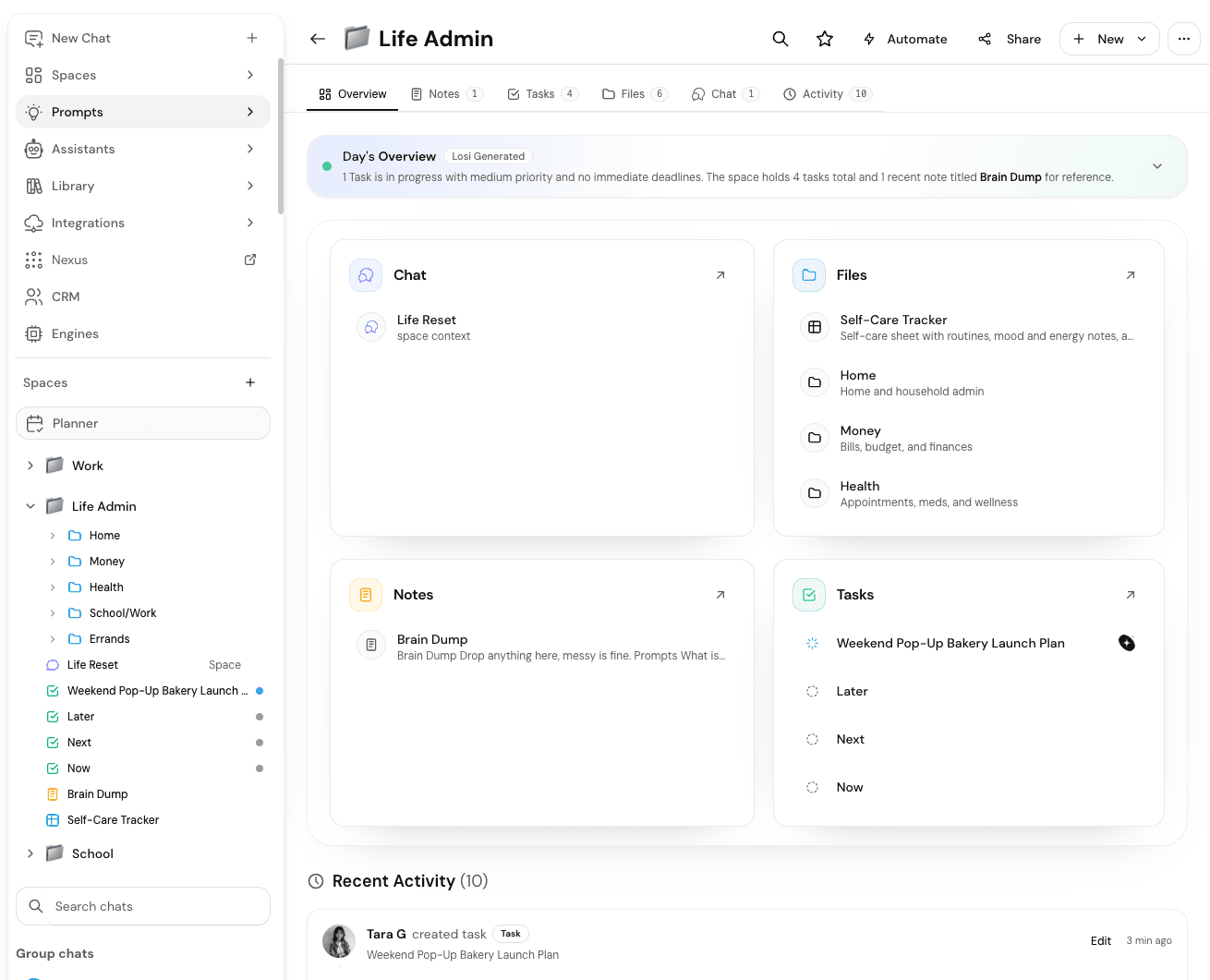
Go to /spaces and open the project you want others to help with.
Click Share
Use Share in the Space header to open members, invites, roles, and join links.
Confirm who should manage access
Owners and admins can invite people, change roles, and update sharing. Editors, commenters, and viewers cannot manage members.
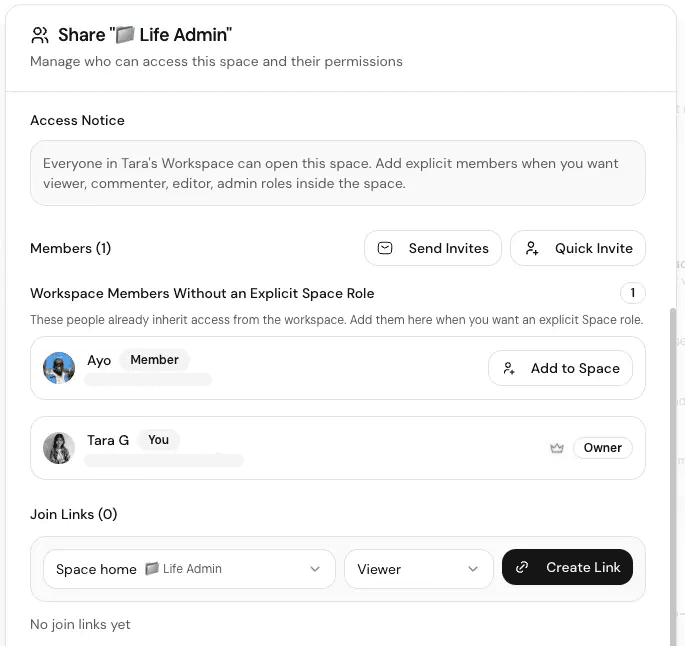
Choose Private or Workspace access
Sharing level controls the base audience before individual invites.
- Private: only invited members can open the Space.
- Workspace: everyone in the current workspace can open the Space. Add explicit members when someone needs a clearer role inside that Space.
- Keep sensitive plans Private, then invite only the people who need them.
Only owners and admins can change the sharing level. Public Space link access is not available yet.
Invite people and pick a role
Use Send Invites for a fuller invite flow, or Quick Invite to email someone with a role. People receive an invite they can accept from the email link at /invite/...
- Viewer: can view Space content.
- Commenter: can view and comment.
- Editor: can create and edit content.
- Admin: can manage members and Space settings.
- Owner: full access, including deleting the Space.
Free and Plus can invite viewers. Pro unlocks commenter, editor, and admin invites. Choose the lightest role that still lets someone do the work.
Use join links when email is awkward
Join links let you share access without typing every email. Create a link from Share, choose the role, and optionally point the link at Space home or a specific folder, sprint, task, note, conversation, sheet, or design.
Copy the link, send it in chat or email, and revoke or refresh it later if access should change.
Accept an invite and land in the Space
Open the invite
Use the Accept Invitation link from email, or accept a pending invitation from Losi if you are already signed in.
Sign in with the invited account
Accept with the email that was invited so the membership attaches cleanly.
Open the Space
After accept, go to /spaces and open the shared project. Your role decides what you can edit or manage.
Share a note or task when the whole Space is too broad
Open a note or task and use its Share control when you need collaborators on one item instead of the full Space.
Notes can stay private to you and explicitly invited collaborators, or open to anyone who already has Space access. Tasks support inviting collaborators for that item while still following Space visibility for the wider team.
- Invite by email with a role that matches the work.
- Copy the item link when someone already has access and only needs the exact note or task.
- Review pending item invitations and remove access when the review is done.
Public item links are not available yet. Prefer Space membership for ongoing teammates, and item invites for focused handoffs.
Assign work and keep updates visible
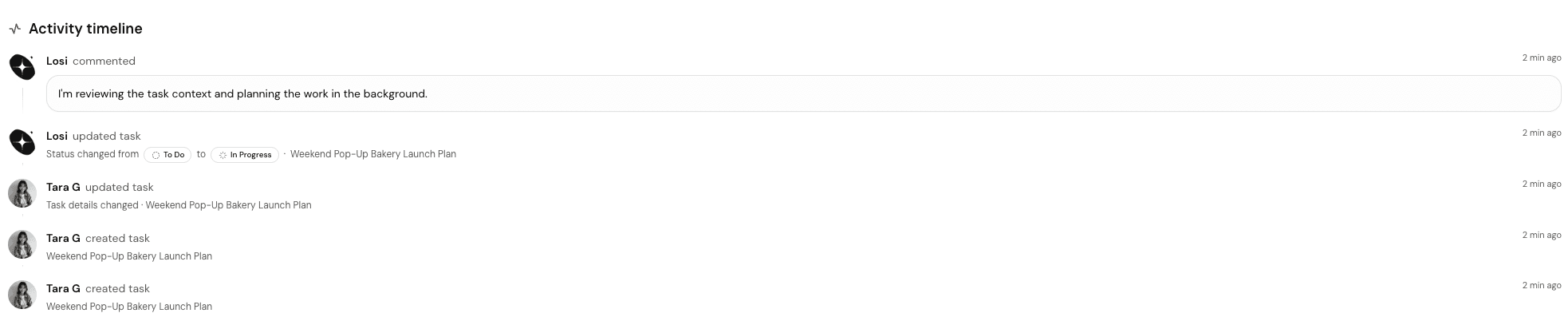
Once people can open the Space, make ownership obvious. Assign tasks, leave comments on the work, and use the activity timeline to see status changes without chasing side chats.
- Assign a task when someone owns the next step.
- Use comments for questions, decisions, and review notes on the item itself.
- Check the task activity timeline for status changes and recent updates.
- Ask Losi to draft follow-ups, then review before assigning them to people.
Useful collaboration habits
- Invite after the Space has a clear outline so new members land on useful structure.
- Prefer Private + invites for personal, family, or confidential work.
- Use Workspace access for team Spaces that the whole workspace should see.
- Give editors to people who create content; keep admins limited to people who should manage membership.
- Use item sharing for a single review pass instead of expanding Space membership too early.
- Remove members or revoke join links when a project ends or access should expire.